

Have you ever had slow internet, tried to fix it, and stumbled across the mysterious number “192.168.1.1”? You’re not alone. This strange string of numbers might look complicated, but it’s actually your gateway to controlling your home Wi-Fi.
In this article, we’ll break down 192.168.1.1 in the simplest way possible. We’ll cover what it is, why it matters, how to use it, and what to do when things go wrong. Whether you’re tech-savvy or a total beginner, this guide is for you.
What is 192.168.1.1?
Let’s start with the basics. 192.168.1.1 is an IP address. Specifically, it’s a private IP address used by many home broadband routers to allow you to access the router’s settings.
Think of it like this: You live in a house (your home network), and 192.168.1.1 is the front door to your Wi-Fi’s control room. If you want to change the Wi-Fi name, update your password, or control which devices are connected — you have to go through this door.
Why is 192.168.1.1 Important?
This address plays a key role in how your internet works at home. When you plug in a new router and connect your devices, the router assigns local IP addresses to each device — like a mini post office. But the router itself needs an address too, and that’s where 192.168.1.1 comes in.
A Real-Life Example:
Sarah, a small business owner, once had issues with customers complaining about slow Wi-Fi. Instead of calling tech support, she learned how to log into 192.168.1.1 and found that ten unknown devices were using her Wi-Fi. She changed the password, kicked out the freeloaders, and the internet instantly improved.
Moral of the story? Understanding 192.168.1.1 gives you control.
How to Access 192.168.1.1 – Step-by-Step
Step 1: Connect to Your Router
You can’t change router settings if you’re not connected to the network. So make sure your device (laptop, PC, or phone) is connected to the router’s Wi-Fi or via an Ethernet cable.
Step 2: Open a Web Browser
Open Chrome, Firefox, Safari, or any browser you use.
Step 3: Enter the Address
In the address bar (not Google search), type:
http://192.168.1.1
and press Enter.
Tip: Don’t include “www” — just the number itself.
Step 4: Enter Login Credentials
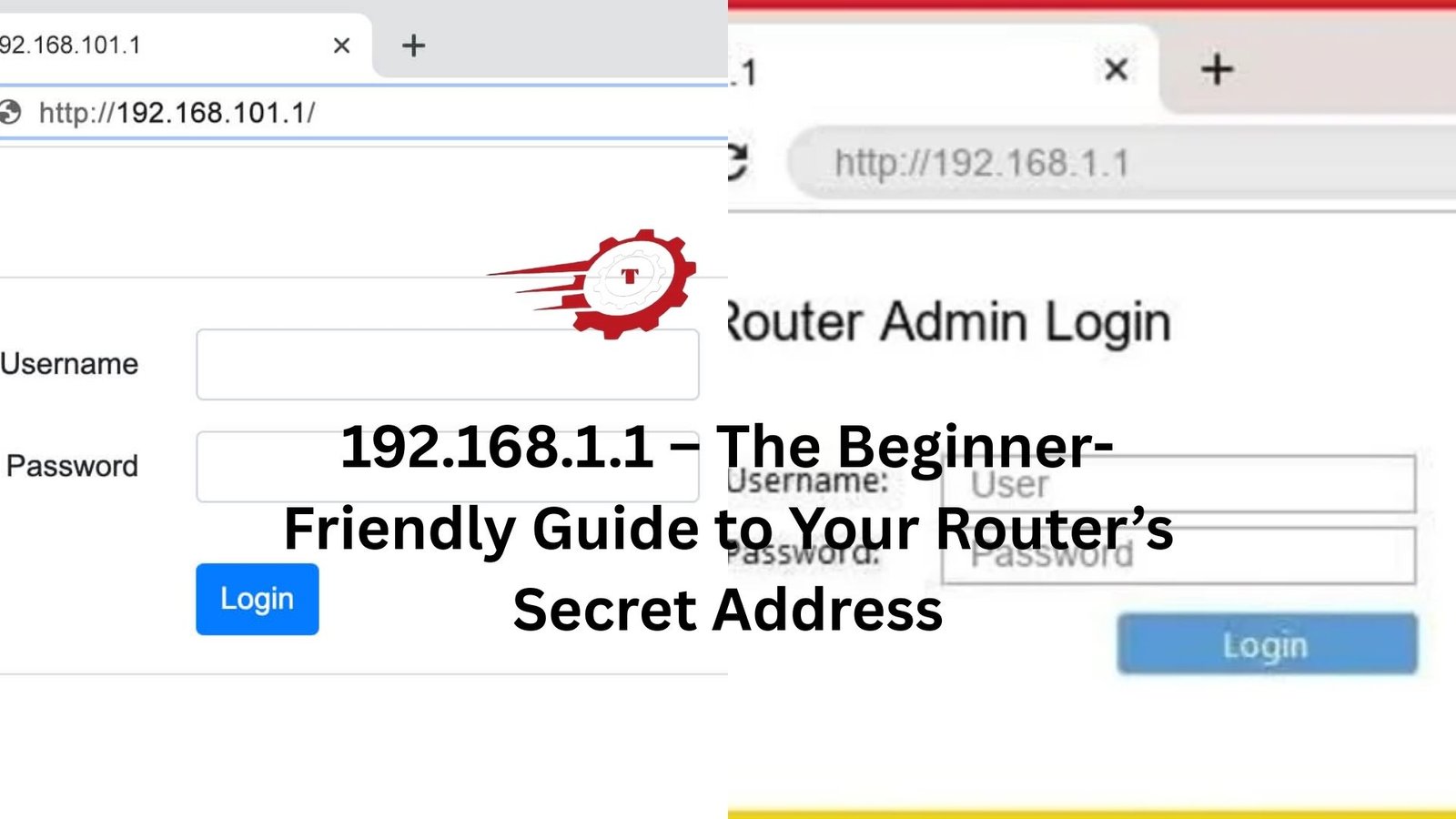
You’ll now see a login page asking for a username and password. This brings us to our next section…
Default Username and Password
Most routers use default login details, especially if you haven’t changed them before. Here are some common combinations:
| Brand | Username | Password |
|---|---|---|
| TP-Link | admin | admin |
| Netgear | admin | password |
| D-Link | admin | admin |
| Linksys | admin | admin |
| Asus | admin | admin |
Note: If none of these work, check the back of your router — the login info is often printed there.
Things You Can Do After Logging In
Once you’re in, a whole world of settings becomes available. But don’t worry — we’ll keep it simple.
1. Change Wi-Fi Name (SSID)
You can personalize your network name from boring names like “TP-LINK_1234” to something more fun like “FBI Surveillance Van”.
2. Update Wi-Fi Password
If your internet is slow, chances are someone’s using it without permission. Change your password to kick them off.
3. See Connected Devices
Find out who’s using your Wi-Fi. Most routers will show a list of all connected devices with their names or MAC addresses.
4. Parental Controls
Want to limit screen time or block certain websites for kids? You can set that up right here.
5. Set Up a Guest Network
This lets visitors use a separate network, keeping your main one more secure.
6. Update Firmware
Just like apps and phones, routers need updates too. Firmware updates can improve performance and fix bugs.
Common Problems and Fixes
Can’t Access 192.168.1.1?
Fix:
- Make sure you’re connected to the right Wi-Fi.
- Type the address directly in the browser’s address bar.
- Try restarting your router and device.
Wrong IP Address?
Sometimes your router uses a different default IP like:
- 192.168.0.1
- 192.168.1.254
- 10.0.0.1
Check the router label or your manual.
Forgot Login Details?
Fix:
- Try default credentials.
- Reset your router using the small reset button at the back (hold for 10–15 seconds using a paperclip).
Warning: Resetting will erase all custom settings.
Safety Tips for Router Login
Accessing 192.168.1.1 gives you power — but with great power comes great responsibility.
Change the Default Username and Password
Hackers know the defaults. Changing these makes your router harder to access remotely.
Use a Strong Wi-Fi Password
Use a mix of letters, numbers, and symbols. Avoid obvious passwords like “12345678” or “password”.
Don’t Share Admin Access
Only give router login access to people you trust. The fewer people who can tinker with settings, the better.
Keep Router Firmware Updated
Firmware updates patch security holes. Check once a month or enable auto-updates if available.
An Anecdote from the Real World
John, a college student living in a shared apartment, once wondered why his internet slowed down every evening. After logging into 192.168.1.1, he discovered that a neighbor had hacked into their network. By setting a stronger password and disabling remote management, he fixed the issue and became the tech hero of the house.
Stories like John’s are surprisingly common — and entirely avoidable.
Related Terms You Should Know
As you dive deeper into your router’s settings, you might come across terms like:
- Gateway IP – This is your router’s IP (usually 192.168.1.1).
- DHCP – Assigns IPs automatically to your devices.
- MAC Address – A unique ID for each device.
- SSID – The name of your Wi-Fi network.
- LAN/WAN – Local vs. external network connections.
Understanding these will help you feel more confident when tweaking settings.
Final Thoughts
The IP address 192.168.1.1 might seem like a boring string of numbers — but it’s actually your key to taking control of your internet.
By logging in, you can:
- Secure your network
- Improve speed and performance
- Customize your settings
- Troubleshoot problems yourself
Whether you’re a student, parent, gamer, or small business owner, knowing how to use 192.168.1.1 can save you time, money, and frustration.
